Getting Started & Setup
This is your installation manual. Follow these steps in order and you'll be fully protected in about ten minutes. You only need to do this once.
Download the app


- On your phone, open the App Store (iPhone) or the Google Play Store (Android).
- Tap the search box at the top and type Guardian Assist.
- Find the app with the Guardian Assist shield logo and tap Get or Install.
- Wait for it to finish, then tap Open. The app's icon also appears on your home screen for next time.
Create your account
- Open the app and tap Create account.
- Type your first and last name, your email, your mobile number, and choose a password (something only you would know).
- Tick the box to agree to the terms, then tap Create account.
Sign in (and set up Face ID)
- On the welcome screen, choose how you'd like to sign in: your mobile number, your email, or your membership number.
- Enter your details and tap Sign in.
- If your phone supports it, allow Face ID or fingerprint so next time you can open the app with just a glance or a touch — no password to remember.
- You can also use Sign in with Apple or Sign in with Google if you prefer.
Turn on location & notifications
When you first open the app it will ask permission to use your location and send you alerts. These are what make Guardian Assist work, so please tap Allow to each one.
- When asked about location, choose "Allow While Using App" first, then when prompted again choose "Change to Always Allow". "Always" lets us keep your family safe even when the app is closed.
- When asked about notifications, tap Allow so you receive safety alerts.
- On iPhone, also turn on Critical Alerts if asked. This is an important one: a normal notification stays quiet if your phone is on silent — but a Critical Alert will still make a sound and light up your screen. That means if a loved one presses their SOS at 2am, you'll actually hear it.
Set up your vehicle tracker
Only if you bought a TR22 Pro tracker for your car. You can skip this if you're only protecting people.
- TR22 Pro (hardwired): book a professional installer near you using our Dealer Locator. They wire it in safely, usually in under an hour.
- In the app, go to the Vehicles tab and tap the + to add your vehicle (see the Vehicle Tracking section below for the full how-to).
Let the tracker switch on
After a tracker is fitted, our team switches it on and runs a 12-hour check to make sure it's reporting reliably before we tell you it's ready.
- You don't need to do anything — we handle the activation for you.
- You'll get updates as the device settles in (usually within the first few hours).
- Once the 12-hour check passes, your vehicle appears live on the map and you're fully protected.
Your Home Screen
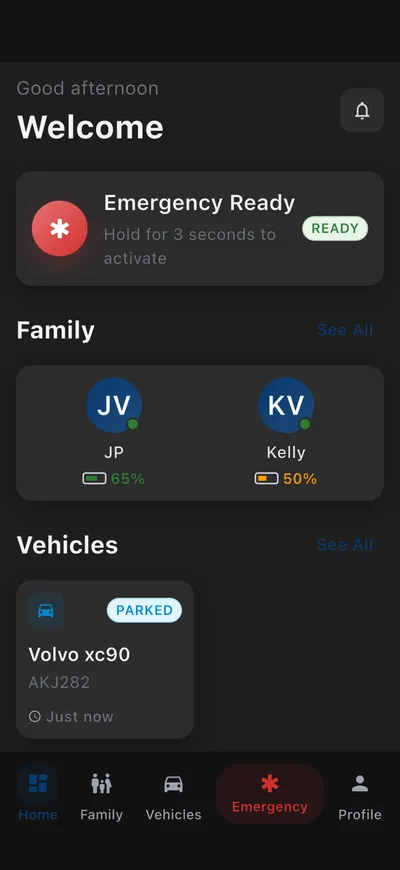
The Home screen is the first thing you see when you open the app. It gives you a one-glance picture of everyone and everything you're protecting. Along the bottom you'll find five tabs: Home, Family, Vehicles, Emergency, and Profile.
Each coloured card on the Home screen is a shortcut. Tap any card to open that part of the app.
- Greeting — a friendly hello with the time of day.
- Emergency Ready — your SOS at the ready; the green badge means it's set up. Tap it if you ever need urgent help.
- Family — each loved one with their phone battery, so you can tell at a glance everyone is safe. Tap to see them on the map.
- Vehicles — shows each car as parked, moving, or offline. Tap a car to see where it is.
- Quick actions — scroll down for handy buttons like Share my location and View places.
Personal Safety & SOS
These are the features that bring help when you need it most. Take a moment to set them up now, so they're ready long before you ever need them.
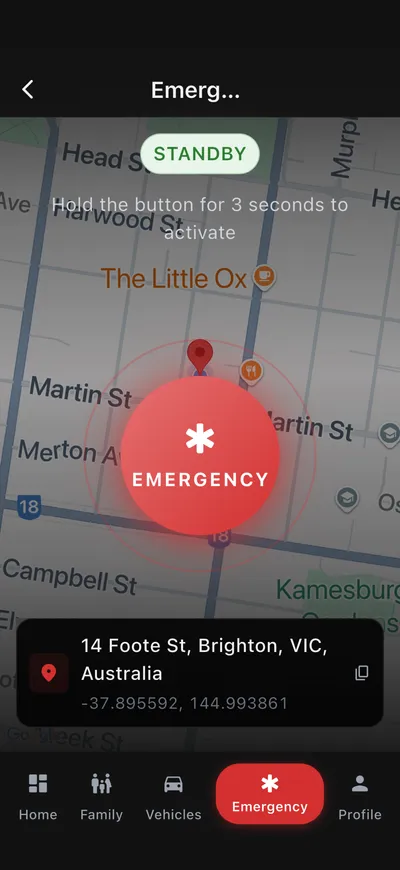
What it is: One big button that calls for help. On a paid plan it connects you to our 24/7 Australian Control Room — real people who can talk to you, see your location, and send help. On the free plan it sends a text with your location to your emergency contacts.
- Tap the Emergency tab at the bottom (or the red button on the Home screen).
- Press and hold the big SOS button.
- A 10-second countdown begins. This gives you a chance to cancel if you pressed it by mistake — just tap Cancel.
- If the countdown finishes, your alert is sent. Your live location — and, on paid plans, live audio and video — goes to the Control Room so they can help straight away.
- Stay with your phone if you safely can. An operator will be in contact and will arrange help.
What it is: A private, encrypted profile of important health details. If you ever press SOS, responders can see what they need to help you safely. Only emergency responders can see it — not your family.
- Tap the Profile tab, then Medical information.
- Fill in what's relevant: allergies, medical conditions, medications, blood type, your doctor, and your health insurer.
- Tap Save. You can come back and update it anytime.
What it is: The people who get a text message with your location if you press SOS on the free plan. You can add up to three.
- Go to the Profile tab and tap Emergency contacts.
- Tap Add contact and enter their name and phone number.
- Tap Save. Repeat for up to three people you trust.
Family & Location
See your loved ones safe on one map, get a quiet nudge when they arrive home, and share your own location when it helps. Everything here lives in the Family tab.
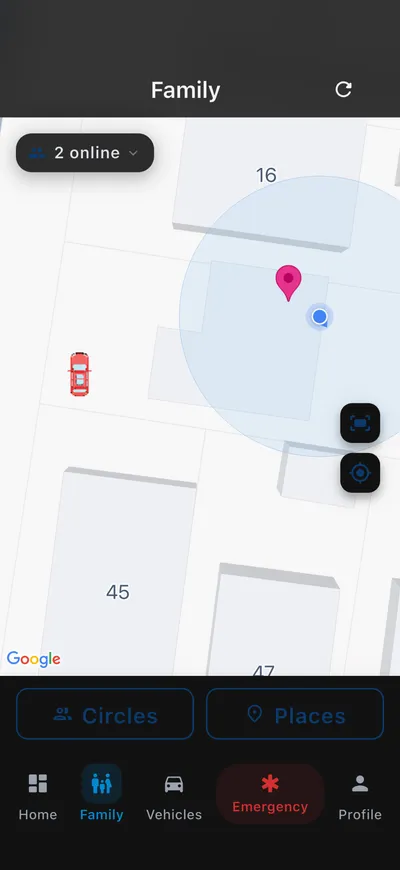
What it is: One map showing where everyone in your family is right now — plus any vehicles and Apple Watches. Each person has their own coloured dot.
- Tap the Family tab. The map opens with everyone shown.
- Tap any coloured dot to see that person's name, when they were last seen, and their phone battery.
- Swipe up the list at the bottom to see everyone together.
- Pinch with two fingers to zoom in or out.
What it is: How you add the people you want to keep safe — your partner, children, grandchildren, or elderly parents.
- In the Family tab, tap Invite.
- Enter their first name and mobile number (or tap the contacts button to pick them from your phone).
- Check the details and tap Send invite.
- They get a text message with a link. When they tap it and set up their app, they appear on your map automatically.
What it is: Groups within your family so you can choose who sees whom — for example a "Kids" circle and a "Grandparents" circle.
- In the Family tab, tap Circles.
- Tap Add circle, give it a name, and choose who belongs in it.
- Tap Save. Use the circle filter on the map to show just that group.
What it is: Mark important spots like Home, Work, or School. The app can quietly tell you when a family member arrives or leaves — so you'll know the kids got to school without having to call.
- In the Family tab, tap Places, then Add place.
- Give it a name (e.g. "Home") and search for the address or drop the pin on the map.
- Set how big the zone is by dragging the radius slider.
- Turn on Arrival and/or Departure alerts, and choose who they're about.
- Tap Save.
What it is: A link that shows where you are for a set time — handy when you're meeting someone or want a friend to watch you get home safe. It switches itself off automatically.
- In the Family tab, tap Share my location.
- Choose how long to share for: 1, 4, 8, or 24 hours.
- Tap Copy link or Send by text to send it to anyone — they don't need the app.
- To stop early, open the same screen and tap Revoke next to the active share.
What it is: A simple day-by-day diary of trips and places visited — so you can check, for example, where someone has been today.
- Open the Profile tab and tap Timeline (or tap a person on the map and choose their history).
- Use the date picker at the top to choose a day.
- Scroll through the day's trips and place visits. Tap any trip to see it drawn on the map.
Privacy & Your Data
You are always in control of your own information. Here's how to hide your location when you want to, decide who can see you, and manage your data. Important: even when you're hidden, the SOS button still works and will reveal your location so help can reach you.
What it is: Temporarily hides your location from your family — useful when you want some privacy. It can switch back on by itself after a set time.
- Open the Profile tab and tap Ghost Mode.
- Choose how long to stay hidden: 1 hour, 4 hours, 24 hours, or until you turn it off.
- Tap Go Ghost and confirm. A countdown shows how long is left.
- To come back early, open the same screen and tap Exit Ghost Mode.
What it is: A safe, temporary link that shows someone where you are right now — perfect for a lift home, a date, or a long drive. The link is view-only, you can switch it off whenever you like, and it always stops working by itself.
- Open the Profile tab (or your map) and tap Live Share.
- Choose how long the link should last — anywhere from 1 hour up to 24 hours.
- Tap Send and pick how to share it: by text message, email, or Copy link to paste anywhere.
- To stop sharing early, open Live Share again and tap Stop sharing. The link will no longer work.
What it is: Hide your location from one particular person while staying visible to everyone else.
- Open the Profile tab and tap Visibility controls.
- You'll see a list of your family members, each with an eye icon.
- Tap the eye next to anyone you'd like to hide from. Tap again to become visible to them once more.
What it is: You own your information. You can ask for a copy of everything, or delete your location history whenever you like.
- Open the Profile tab and tap Your data.
- To get a copy, tap Request download — we'll email you a file (usually within minutes).
- To remove your history, tap Delete history and confirm. We keep a 30-day recovery window in case you change your mind, then it's gone for good.
Vehicle Tracking
If you've added a GPS tracker, the Vehicles tab is your control centre — see where your car is, where it's been, get warned if it's moved, and on the TR22 Pro, even stop the engine remotely if it's stolen. Most of these are paid-plan features.
What it is: Registers your car, bike, boat, caravan, truck and more in the app so you can track it.
- Tap the Vehicles tab, then the + button.
- Choose the type of vehicle (car, motorcycle, boat, caravan, jet ski, truck, van).
- Enter the number plate and, if you like, a description (make, model, year).
- Follow the prompts to connect your tracker, then tap Done.
What it is: If you drive a Tesla, you can see it on your family map without fitting any tracker at all. You simply link your Tesla account, and the app shows your car's location and battery level. It's view-only — Guardian Assist can see where the car is, but never drives or controls it.
- Tap the Vehicles tab, then the + button, and choose Connect a Tesla.
- You'll be taken to Tesla's own sign-in page. Enter your Tesla account details there — Guardian Assist never sees your password.
- Approve the read-only access Tesla asks about, then return to the app.
- Your Tesla now appears on the map with its location and battery level, right beside your family.
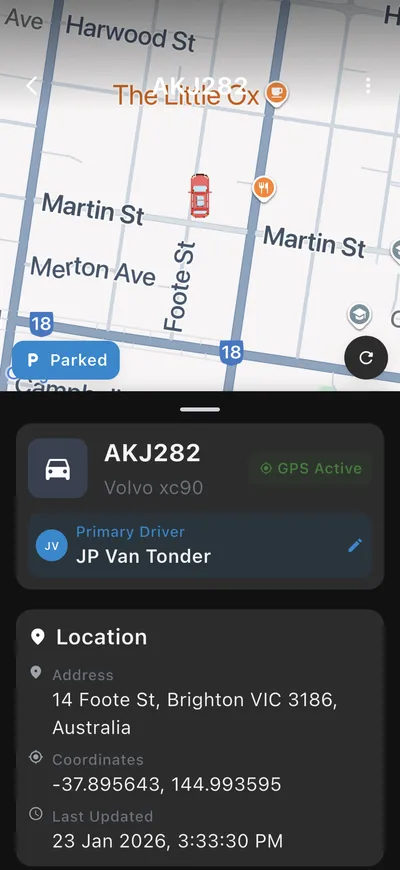
What it is: A live map of your vehicle's current location, with its status (parked, moving, or offline), speed, and address.
- Tap the Vehicles tab and choose your vehicle.
- The top half shows the live map; the bottom half shows its details.
- It refreshes by itself. Pull down to refresh sooner.
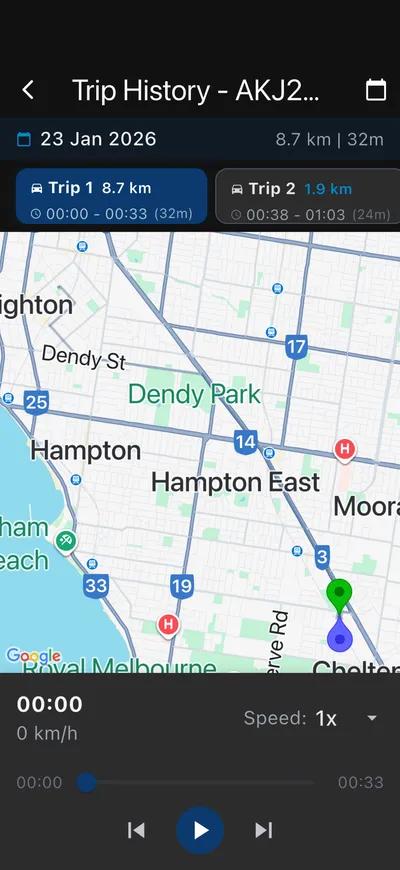
What it is: Every journey your vehicle has made, which you can replay on the map like a little movie.
- Open your vehicle and tap View trip (or Trips).
- Pick a date, then tap a journey from the list.
- Press Play to watch the route, with the speed shown along the way.
What it is: Once your car parks and sits still, Auto-Guard arms itself automatically. If the car is then moved — for example, towed or stolen — you get an instant alert.
- Open your vehicle and tap Roaming geofence (Auto-Guard).
- Switch it on.
- Adjust how far the car can move before alerting, and how long it must be still before arming — or just leave the sensible defaults.
- Tap Save. From now on it protects your car every time you park.
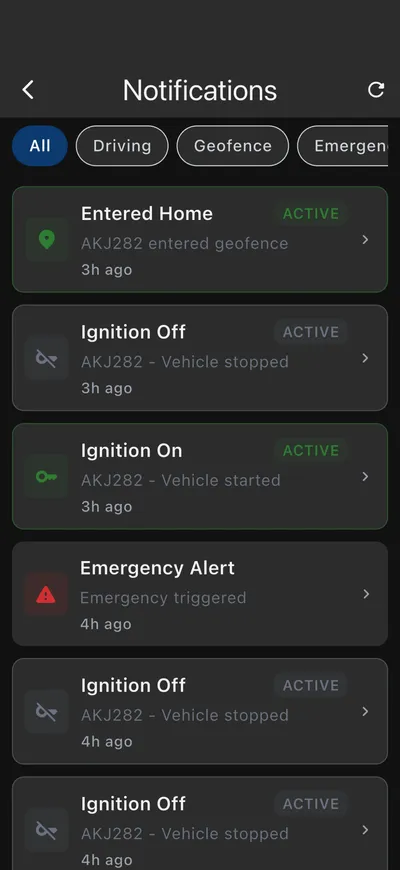
What it is: Choose what your car tells you about — speeding, a low tracker battery, the engine starting or stopping, and leaving a zone.
- Open your vehicle and tap Alert settings.
- Turn on the alerts you want: Overspeed, Low battery, Ignition on/off, or Geofence.
- Set the limits to suit you (for example, a speed limit for a young driver), then tap Save.
What it is: A gentle nudge so you never miss a service or your rego. You tell the app when the next one is due — either by how far you've driven, or by a date — and it reminds you in good time.
- Open your vehicle and tap Reminders (Service & maintenance).
- Tap Add reminder and give it a name, like "Logbook service" or "Rego".
- Choose how it's measured: by distance (for example, every 10,000 km) or by date (for example, every 12 months).
- Tap Save. The app will let you know before it's due, so you've got time to book it in.
What it is: If your car is stolen, you (or our Control Room) can safely stop the engine from being restarted. For safety it only works when the car is stopped or moving very slowly.
- Open your vehicle and tap Engine cut.
- Check the status shows the car is stopped or under 20 km/h.
- Tap Cut engine and confirm twice — this double-check prevents accidental use.
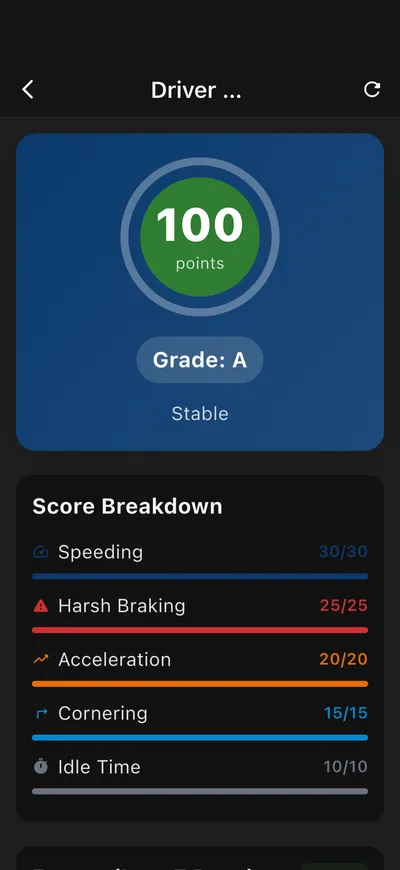
What it is: A score out of 100 that rates how safely a vehicle is being driven — great peace of mind for parents of young drivers.
- Open your vehicle and tap Driver score.
- See the overall score plus counts of hard braking, speeding, and harsh cornering.
- Check the 30-day trend to see if driving is improving.
Watch & TV
Guardian Assist isn't only on your phone. It also works on your Apple Watch — so you can call for help from your wrist — and you can show the family map on your Apple TV.
What it is: A companion app on your wrist with its own SOS button, so you can get help even without reaching for your phone. It's included on every plan, even the free one.
- Install Guardian Assist on your iPhone first (it usually adds itself to your watch automatically).
- On your phone, open the Profile tab and tap Apple Watch.
- Turn on Active mode and Show on family map if you'd like the watch to be visible to family.
- On the watch, open the app — the SOS button is right there when you need it.
What it is: View your family map on the big screen at home.
- Open the Guardian Assist app on your Apple TV — a QR code appears.
- On your phone, open the Profile tab and tap Pair Apple TV.
- Point your phone at the TV to scan the code (or type in the short code shown), then confirm.
Account & Settings
Everything about your account lives in the Profile tab — your personal details, your children's information, your plan, and your notification preferences.
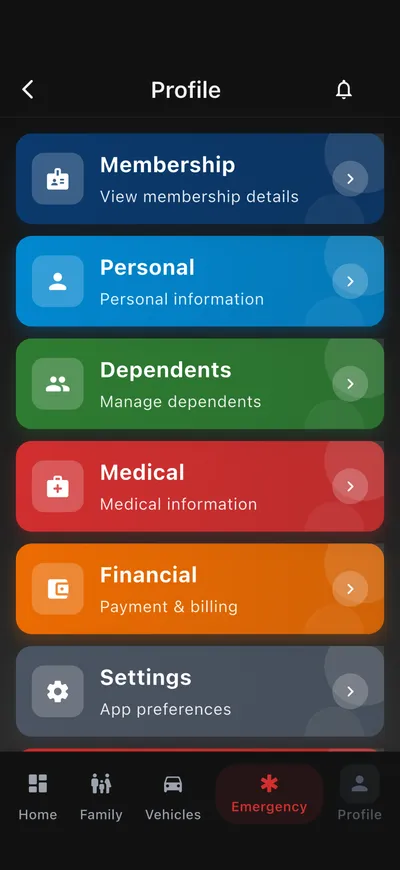
What it is: Your name, date of birth, address, and a next-of-kin contact for emergencies. The Profile tab is also where you'll find Membership, Dependents, Medical and Financial details.
- Tap the Profile tab, then Personal.
- Tap a field to edit it, make your changes, and tap Save.
What it is: A place to record details about your children or grandchildren, including any medical notes responders should know.
- Tap the Profile tab, then Dependents.
- Tap Add, enter their name, date of birth and any medical notes.
- Tap Save.
What it is: Shows which plan you're on and what's included. Because of Apple's rules, you change or upgrade your plan on our website rather than in the app.
- Tap the Profile tab, then Membership to see your current plan.
- To change it, tap Manage on web — this opens your account in a web browser.
- Sign in there to upgrade, downgrade, or update your payment details.
What it is: Decide which alerts you receive and a few privacy preferences.
- Tap the Profile tab, then Settings.
- Switch alerts on or off — emergency alerts, place alerts, vehicle alerts.
- On iPhone, make sure Critical Alerts is on so emergencies can reach you even on silent.
Troubleshooting & Getting Help
A few honest answers to the questions people ask most. If you're ever unsure, you can always call us — there's a real person on the end of the line, 24 hours a day.
What if my phone is switched off or out of battery?
Live tracking pauses while the phone is off, and the last known location stays on the map. As soon as the phone is back on, it updates again. A vehicle tracker works on its own and keeps reporting regardless of your phone, and an Apple Watch can also send an SOS.
What if I lose my phone or get a new one?
Your account and information live safely in the cloud, not just on the phone. Simply install the app on your new phone and sign in with the same details — everything will be there. If you can't sign in, call us and we'll help.
Will alerts reach me if my phone is on silent?
Yes — on iPhone, turn on Critical Alerts (you'll be asked during setup, or find it under Settings). These important safety alerts can break through silent mode and Do Not Disturb.
What if there's no mobile signal (like out in the bush)?
The app keeps a record of your location and sends it the moment signal returns. If you press SOS with no signal, it keeps trying and goes through as soon as there's any coverage.
Will it drain my battery?
No — the app is carefully built to sip power gently in the background. Most people notice no real difference in their day's battery life.
I'm still stuck — how do I talk to a person?
We're always happy to help. Call us 24/7 on 1300 308 114, or visit our Contact page to send a message. For quick answers, the FAQ page covers the most common questions too.
No matches for .
Try a simpler word, or call us 24/7 on 1300 308 114.